Feature
Combine Wi-Fi and Mobile Data on Android and Windows
Put Wi-Fi, mobile data, cable and USB tethering to work at the same time, so downloads and video get faster and one dropped connection does not knock you offline.
Your phone can reach both Wi-Fi and mobile data, yet Android normally uses only one of them. Windows is the same: even with a cable and Wi-Fi both connected, all traffic leaves through a single adapter. V2Duo removes that limit. Every connection your apps open goes out over one of your internet links, so together you get the capacity of all of them.
This guide explains what combining actually does, how to turn it on for Android and Windows, and what to expect. One thing up front: combining is not magic and does not exactly double your speed. In the right situations, though, the difference is very clear.
What does combining connections mean?
Opening a web page or starting a download makes the app open several separate connections. A normal news page uses dozens, and a download manager like IDM fetches one file in eight or sixteen parts at once.
V2Duo spreads those connections across your links. If Wi-Fi has a share of one and mobile data a share of two, then out of every three new connections one goes over Wi-Fi and two over mobile data. Each connection stays on the same path from start to finish, so websites see nothing unusual and connections stay stable.
Network engineers call this load balancing. There is another approach, bonding, that splits a single connection across two paths, but it needs a special relay server in the middle. V2Duo works with your own V2Ray and Xray configs and does not depend on a server of ours.
How it works on Android
Android lets a VPN app use other networks next to the default one. When V2Duo connects, it asks Android to keep both Wi-Fi and mobile data active and binds each of its paths directly to its own network.
To use it:
- Turn on both Wi-Fi and mobile data.
- In V2Duo, open Settings and check that both connections are enabled.
- Set the connection mode to Max speed.
- Tap Connect. The home screen shows the live speed of each connection separately.
How it works on Windows
Windows gives you more room. Every adapter with internet access shows up in V2Duo: a LAN cable, Wi-Fi, USB tethering from your phone and even cellular modems. V2Duo builds a separate path for each one and sends that path's traffic out of exactly that adapter.
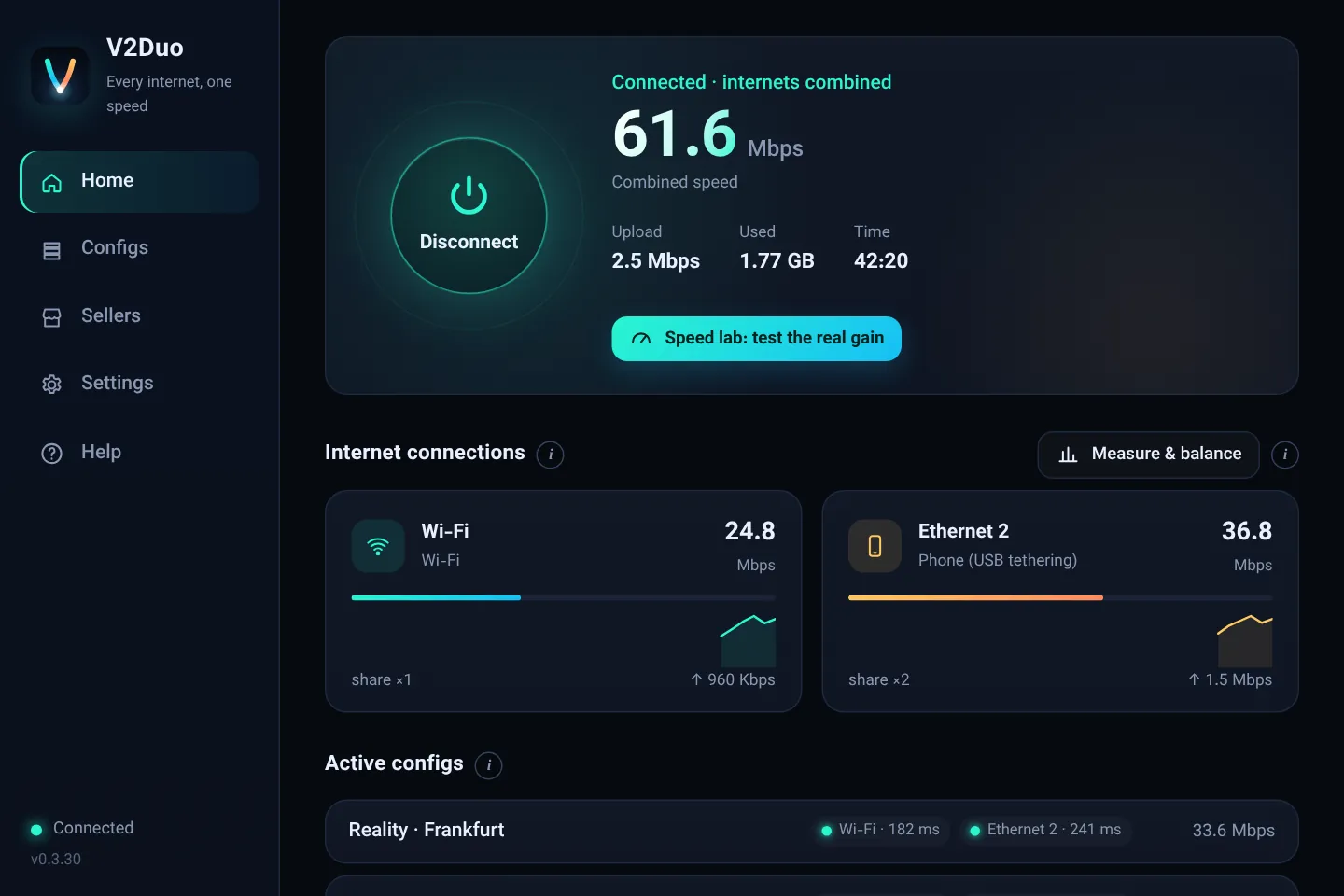
A very practical setup: the computer on home Wi-Fi, plus your phone sharing its mobile data over a USB cable. Just turn on USB tethering on the phone; Windows sees a new adapter and V2Duo adds it to the list.
In Settings you can reorder the connections, switch any of them off, or give each a share from one to eight.
How to set the share of each connection
If one link is much faster, equal shares let the slow one hold things back. Say mobile data does 40 Mbps and Wi-Fi does 10. With equal shares, half of all connections go over the slow Wi-Fi.
You have two options:
- By hand: give the faster link a bigger share in Settings, for example four to one.
- Automatically: the Measure & balance button on the home screen measures each link on its own and sets the shares to match their real speed.
To see how much combining actually helped, run the Speed lab. It measures each link alone and then everything together.
How much faster? Simple math
The most you can get is roughly the sum of your links, minus a little overhead. Two things pull that number down:
| Situation | Rough result |
|---|---|
| Two links of similar speed (say 20 and 20) | up to about 35 to 38 Mbps in multi-part downloads |
| One much faster (say 40 and 5) | at most about 45; with equal shares even below 40 |
| A slow config (server does 15 Mbps) | never more than 15, however many links you have |
The last row matters. With a V2Ray config, all traffic passes through that config's server. If the server is slow, combining cannot make it faster. The fix is to use several configs at once so the load is spread over several servers too.
Where you feel it and where you do not
Combining helps most with anything that opens many connections: download managers, YouTube, app updates and heavy pages. A single-connection download, online games and video calls barely change, because that one connection travels a single path.
Do not underestimate the other benefit: staying online. If Wi-Fi drops, new connections go over mobile data and you often do not even notice. If stability matters more to you than speed, try Backup mode.
Does it use more data?
No. The same data you were going to download is simply split between your links. If your mobile plan is limited, give mobile data a smaller share or choose Priority mode so most traffic stays on Wi-Fi. The only extra traffic comes from config health checks, a small request every two minutes.
Frequently asked questions
Do I need a config to combine connections?
No. Without any config, V2Duo still combines your links. We call that direct boost, and it is useful for sites that open without a proxy.
Does my phone need to be rooted?
No. V2Duo uses Android's official features and needs no root.
Will it drain my battery?
Keeping Wi-Fi and mobile data on together uses a bit more battery, but V2Duo itself is light. While the screen is off, it slows down its stats updates to save power.
Why is my combined speed lower than my fastest link alone?
Usually the shares are off and the slow link took too many connections, or the config itself is slow. Tap Measure & balance and test again in the Speed lab.
Ready to try it?
V2Duo is free and takes a minute to install.
The V2Duo team wrote this guide from tests on real devices and updates it with every release. How we test